Introduction: Scrolling Ticker for OBS/ & Its Design Complexity
A scrolling ticker for OBS/vMix is one of the most effective ways to deliver continuous information during a live stream. From breaking news and live scores to announcements, updates, and sponsor messages, scrolling tickers help keep viewers informed without interrupting the main video content.
OBS/vMix is widely used as a streaming engine by creators and broadcasters across platforms like YouTube, Twitch, and Facebook Live. Many streamers using OBS/vMix rely on scrolling tickers to share real-time updates, headlines, and calls-to-action while staying live on air.
However, designing a professional scrolling ticker involves more than simply moving text across the screen. Readability, smooth motion, safe broadcast margins, branding consistency, alignment with other overlays, and real-time content updates all play a critical role. Managing these elements directly can quickly become complex, especially as production requirements grow.
This is why many broadcasters continue to use OBS/vMix for switching and streaming, while relying on professional real-time graphics tools to handle ticker design and control in parallel.
In this guide, you’ll learn how to design, manage, and scale a scrolling ticker for OBS/vMix, from basic layouts to broadcast-ready graphics, using advanced design and control capabilities available through Xpress.
Xpress and Designer: Enhancing a Scrolling Ticker for OBS/vMix
While OBS/vMix allows basic scrolling ticker setups using text sources or media elements, these approaches often require manual adjustments when styling, animation, or live content updates are needed. As production demands increase, maintaining consistency and speed can become challenging.
WASP3D Xpress is designed to work alongside OBS/vMix, not replace it. OBS/vMix continues to handle switching and streaming, while Xpress manages the complexity of scrolling ticker graphics and real-time design control.
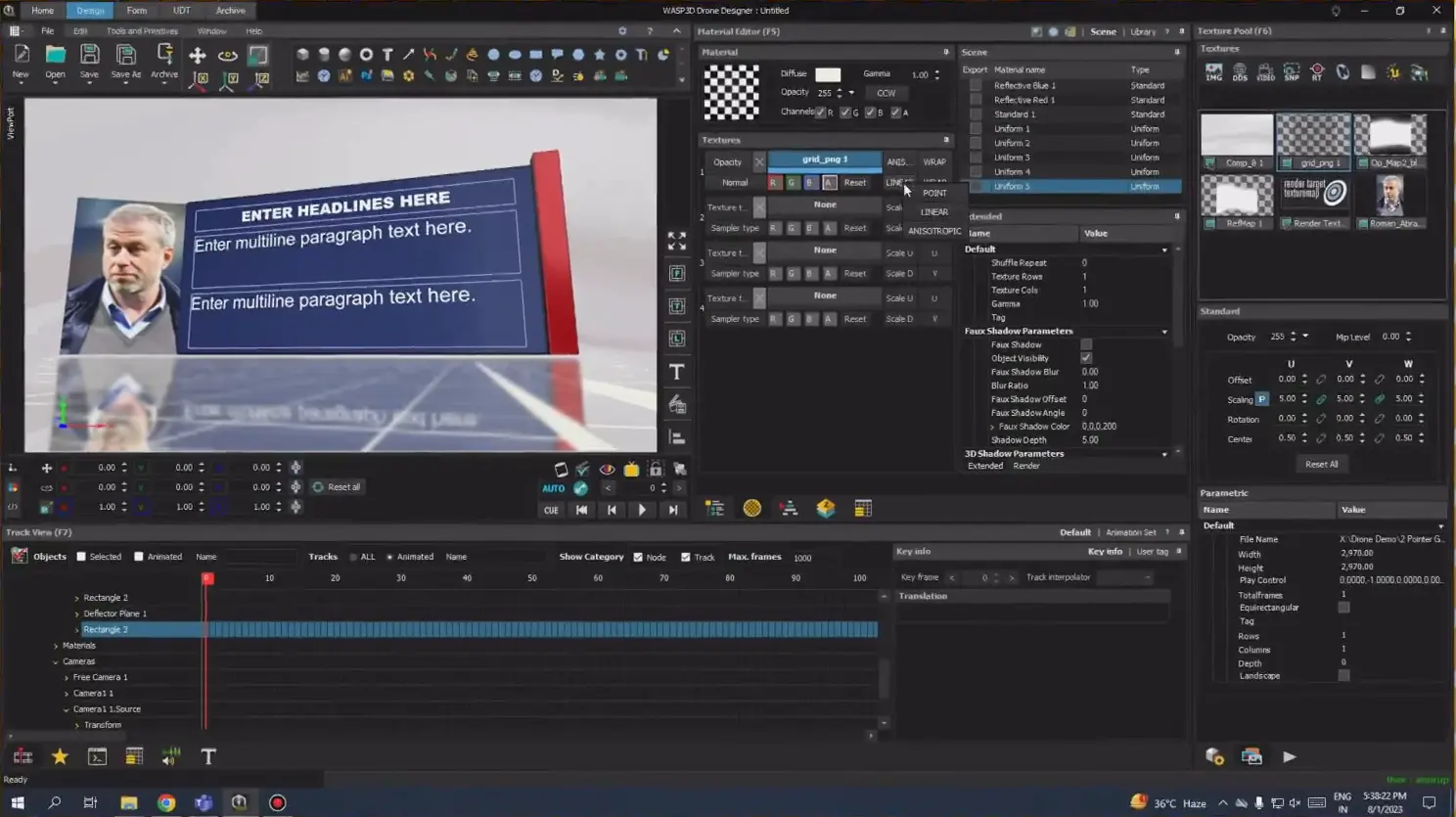
With Designer in Xpress, you can:
- Create reusable scrolling ticker templates from scratch
- Visually control band color, transparency, and placement
- Adjust scrolling speed precisely using parameters
- Update ticker content live without changing OBS/vMix scenes
How Do You Add Background Color or Transparency to an OBS/vMix Ticker?
OBS/vMix is used for basic streaming, it has limitations when it comes to advanced scrolling ticker text designs. Text styling in OBS/vMix often relies on plugins or manual work arounds and making live changes to text design or effects can be time consuming. Aero-style text effects and dynamic text updates are also limited, especially during live productions.
Xpress (Free Forever) is built specially for real time graphics and text control. It allows you to design, style and update scrolling text including Aero text effects directly within the system. With some amazing features likes UDT based controls, material level styling and live form-based updates, Xpress offers a smoother, faster and more professional workflow for scrolling tickers compared to OBS/vMix.
In Xpress, a scrolling ticker is more than just moving text across the screen, it’s a design element that helps deliver information clearly and professionally. Xpress focuses heavily on text styling, making it easy to design clean, readable and visually appealing ticker text without extra complexity. Xpress gives you direct control over how scrolling ticker text looks on screen. You can easily adjust font size, color and alignment to make sure the text stays readable while scrolling. Text colors can be changed using the fore color option in the ticker parameters, helping you match the ticker text with your brand or show theme.
If a material is applied to the scrolling ticker, text styling can be further refined using the diffuse color settings. This allows the text to look smoother and more polished, especially in professional broadcast setups.
For teams that needs flexibility, Xpress supports wired values and UDT (User Defined Templates). With UDT, text styles and color can be changed directly from a form even while scrolling ticker is live. This makes it easy to update text designs for different segments, sponsors or real time content without stopping the production.
Xpress also supports Aero effects, which help add depth and clarity to scrolling ticker text. These effects can include subtle highlights, soft shadows and smooth glow style finishes that improve readability without making the text feel heavy.
Aero text effects are especially useful when the scrolling ticker appears over dynamic or busy visuals. They help the text stand out naturally, giving the ticker a modern and broadcast-quality look.
Transparency can also be controlled at the text level by adjusting opacity values in the applied material. This allows you to fine-tune how strong or subtle the text effects appear, keeping the scrolling ticker visually balanced on screen.
Watch full tutorial:
Can OBS/vMix Ticker Include Icons or Logos?
OBS/vMix typically offers more basic ticker setups, where adding logos, icons or advertisements may rely on manual placement or external plugins. Making live changes can be time-consuming and less flexible.
With Xpress it’s a big yes, an advanced scrolling ticker designing tool allows text, icons, logos, and ad elements to be managed together in a very clean and effective workflow. This flexibility helps you create visually rich tickers for live broadcasts, sports events, news updates, and sponsored content.
Icons and logos can be added to a scrolling ticker in both the category section and within the scrolling data itself. This allows you to display brands logos next to headlines, icons between updates or visual markers that guide viewer’s attention as ticker moves.
A common and effective method is using a separator as a base object within the scrolling ticker. These separators sit between text elements and can be styled independently. By applying a material to the separator and assigning an icon or logo in the material’s texture slot, you can easily display any image, such as a brand logo, symbol, or graphic that also consistently throughout the ticker.
The same separator approach can also be used for advertisements. Instead of plain text, a separator can carry a sponsor logo or promotional graphic, allowing short ad visuals to appear naturally between ticker messages. This makes the scrolling ticker a smart space for subtle advertising without interrupting the main content. You can use for sports broadcast ad, news channels ad, live event ad and much more.
Watch full tutorial:
How Do You Pause or Hide a Scrolling Ticker for OBS/vMix?
OBS/vMix is commonly used for basic streaming, controlling a scrolling ticker in OBS/vMix often involves manual steps, limited animation control, or external plugins. Pausing, hiding, or triggering ticker behavior during live broadcasts can be less flexible and slower to manage.
Here Xpress (Free Forever) gives you access to control your graphics in real time. With special features like axis-based movement, action buttons and intra scene triggers allows operator to manage scrolling tickers instantly and professionally without interrupting the live flow.
In Xpress, controlling a scrolling ticker, including hiding or pausing is very simple and fully customizable. This gives a complete control to broadcasters when the ticker appears, stops or changes behavior during a live production.
To pause a scrolling ticker, you only need to adjust its velocity value in the ticker parameters. By setting the velocity to 0 on the X, Y or Z axis (depending on the direction in which the ticker is moving), the ticker immediately stops scrolling while staying visible on screen.
The velocity control can also be wired to a form as an integer or float value. That means operators can pause or resume the scrolling ticker instantly during a live show without touching the design. For even faster control, an action set button can be created that uses a Set Parameter action to change the velocity value to 0. With a single click, the scrolling ticker pauses exactly when needed.
If the goal is to completely hide the scrolling ticker, the same approach can be used to trigger visibility or movement changes using actions, keeping everything smooth and non-disruptive on air.
Xpress also allows the scrolling ticker to move along the Y axis, not just horizontally. This especially useful when you want the ticker to slide in from the bottom or move vertically for special moments. A common use case is introducing a Breaking News template. The ticker can move upward in the Y axis, lock into position and immediately grab viewer attention without cutting away from the main video.
One of biggest strength of Xpress is that it support for intra scene triggers, which allow different element to react inside the same scene without switching the layouts.
Here are real world use cases across different genres:
- News Broadcasts: When breaking news occurs, an intra scene trigger can pause the regular scrolling ticker, bring in a bold breaking news ticker from the Y axis, and resume normal scrolling once the update ends.
- Sports Coverage: During live matches, the scrolling ticker can stop automatically when a goal or key moment happens, then restart with updated scores or sponsor content.
- Live Events and Talk Shows: A scrolling ticker can pause when a guest is introduced or when an important announcement appears, keeping viewer focus where it matters the most.
For full video click below 👇:
Can Multiple Messages Be Shown in One Scrolling Ticker for OBS/vMix?
OBS/vMix allows multiple messages in a scrolling ticker but managing them often requires manual edits or scripts.
With structured data entry, multiple messages can be queued, categorized, and updated dynamically very easily. OBS/vMix simply receives the rendered ticker feed, reducing live edit pressure during broadcasts.
How do you Keep a Scrolling Ticker for OBS/vMix Inside Safe Broadcast Margins?
In OBS/vMix maintaining safe margins for a scrolling ticker can be more manual and less precise. Designers often need extra checks or trial and error positioning to ensure text is not clipped on different screens. Xpress, on the other hand, provides built-in safe area grids and real-time visual feedback, making it easier to design scrolling tickers that are consistent and reliable.
Keeping a scrolling ticker inside safe broadcast margins is important to make sure your text is always visible on every screen and never gets cut off. This same process in Xpress is very simple and also visually appealing, allowing designers and operators to work with confidence.
In Xpress, you can enable safe margin grids directly from the viewport. If they are not already visible, you can simply right-click on the viewport, select Show Safe Areas, and then enable the required resolution margins in HD, SD, or both. These grids appear instantly on the screen and act as clear visual guides.
Once the safe areas are enabled, you can create a scrolling ticker within these grids or adjust an existing ticker by modifying its size and position to fit safely inside the margins. This ensures that the scrolling text stays readable across different displays, broadcast formats, and screen sizes.
For full video click below 👇:
https://www.youtube.com/watch?v=Gz7LqIAQSh4
How Do You Loop a Scrolling Ticker for OBS/vMix Smoothly?
In OBS/vMix, looping on a scrolling ticker often relies on basic text sources or plugins, which may not handle dynamic data, priority updates, or time-based logic smoothly. Managing real-time updates without visual breaks can be challenging.
With Xpress UDT based looping, time-stamp prioritization and structured data control. Xpress delivers smoother, smarter scrolling ticker behavior without live broadcasts.
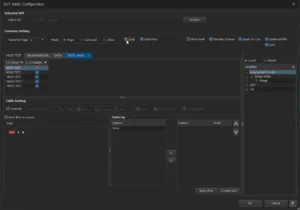
In Xpress, looping a scrolling ticker is designed to be smooth, controlled and easy to manage, so viewers always see continues updates without awkward stops or jumps. To enable looping, you can go to the variable sheet section in the Xpress Designer. From there, simply right-click and edit the ticker’s User Defined Template (UDT) add-in. Inside the UDT settings, you’ll find a loop option. Once this option is enabled, the scrolling ticker automatically repeats its content in a seamless flow.
Xpress allows the latest data to appear first in a scrolling ticker using time stamp based logic. New updates don’t have to wait for the full loop to finish, they move up automatically, ensuring important information reaches viewers faster. This is especially useful for live news and breaking updates, while the ticker continues to scroll smoothly.
Example: “Time Ago” News Tickers
In a setup like T News Hyderabad, the scrolling ticker can show updates in a “time ago” format, such as:
- Traffic update – 2 minutes ago
- Breaking news – 10 minutes ago
- Weather alert – 1 hour ago
How Do You Align a Scrolling Ticker for OBS/vMix with Other Overlays?
In OBS/vMix, aligning a scrolling ticker with other overlays often involves manual positioning and repeated adjustments. Maintaining consistent alignment across different templates or scenes can be time-consuming. With Xpress, layout-based design, SG layouts, visual references, and timeline control, Xpress makes it easier to align scrolling tickers with bugs, lower thirds, and other overlays.
In Xpress aligning scrolling ticker with other on-screen graphics is easy. This helps ensure that all overlays such as lower thirds, bugs and category tickers look clean balanced and professionally place on screen.
One simple way to align a scrolling ticker is by creating a size reference from an existing overlay, such as a lower third. By using the same width and height values, you can adjust the ticker’s position and size to match the overlay perfectly. This keeps spacing consistent and avoids overlaps.
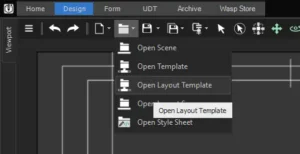
Another effective approach is to open the actual overlay template in the same scene as a layout reference. By using the existing template as a visual guide, you can align the scrolling ticker accurately and make sure it fits naturally alongside other graphics.
Xpress also supports designing layouts using SG (Scene Graph) layouts, which is especially helpful when working with pre-present graphics. Using SG layouts, you can plan the placement of important elements like channel bugs and scrolling tickers in advance, ensuring everything aligns correctly from the start.
Xpress allows you to refine alignment using materials, textures, and the timeline. This is particularly useful for category tickers, where text, background, and separators must stay perfectly aligned with other overlays.
Conclusion
A scrolling ticker for OBS/vMix often starts as a simple text crawl, but as production needs grow, the difference made by professional graphics workflows becomes clear. Managing live updates, maintaining smooth motion, and keeping branding consistent all require more control than basic setups can offer.
By combining OBS/vMix with professional tools like Xpress, streamers and broadcasters can significantly enhance the quality of their tickers without changing their core streaming workflow. OBS/vMix remains at the center for switching and streaming, while specialized graphics tools handle ticker design, animation, and real-time control.
This balanced approach keeps live productions clean, flexible, and visually engaging, allowing tickers to evolve from basic information bands into polished, broadcast-ready graphics that elevate the overall viewing experience.